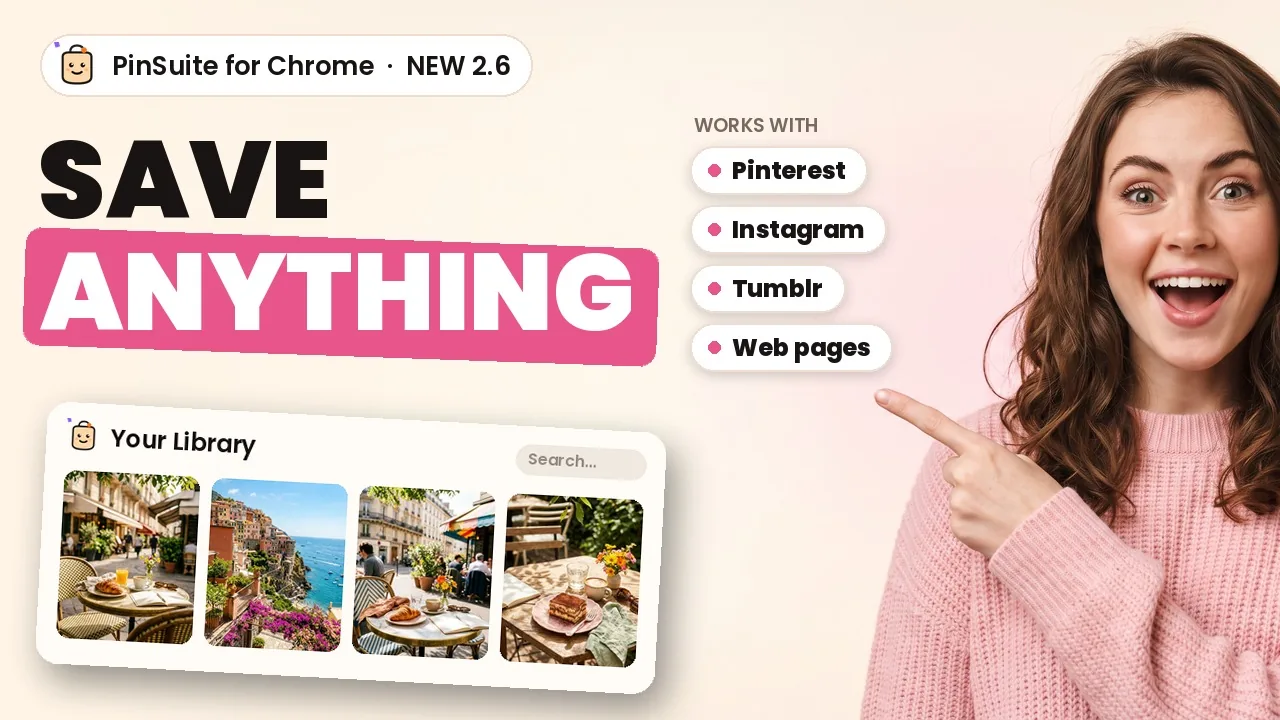
The PinSuite Chrome extension used to be mostly a Pinterest and Instagram helper. Version 2.6 saves whole web pages exactly as you see them, takes full-page screenshots, works from the right-click menu, saves all your open tabs at once, and imports from Pinterest, Instagram, Tumblr and Are.na. It all lands in the same library.
We'll be honest: this update started because of our own browser tabs. Half the team had forty of them open "to read later", and the other half kept screenshotting things and losing the screenshots. So we built the extension we actually wanted to use, and then we kept going.
If you'd rather watch than read, here's the whole tour in about four minutes. Otherwise, keep scrolling.
First, tell it where things go
Click the PinSuite icon and the panel slides open. At the top there's a "Save to" box where you pick a board, or make a new one on the spot. The nice bit is that it remembers your choice per website. Recipes from one site go to your recipes board, travel stuff goes to your trip board, and you stop thinking about it after the first time.

Save a web page exactly as you see it
This is the one we're proudest of. When you save a page you get three choices: keep a full copy, keep just the link, or keep it exactly as I see it. That last one saves the page as it looks on your screen at that moment, including pages you're signed in to. If it's on your screen, you can keep it.

You can add tags and a quick note before you hit save. We use the note for things like "try this weekend", which sounds silly until you actually find it again. If you want the longer story on why a saved copy beats a bookmark, we wrote about archiving web pages before they disappear.
Full-page screenshots, without the screenshot folder
You can grab the visible part of a page, the whole page from top to bottom, or draw a box around just the bit you care about. Full-page screenshots scroll by themselves, so don't panic when the page starts moving. The screenshot goes straight into your library instead of a desktop folder you'll never open again.
The right-click menu got a lot smarter
Honestly, this is where most of us live now. Right-click anywhere and there's a PinSuite section that changes depending on what you clicked:
- On a page: save it, pick images from it, take a screenshot, or send it to one of your recent boards.
- On a link: save the link without opening it.
- On selected text: save it as a highlight. It remembers which page it came from.
- On a picture: save it, or drop it straight into a board.
Pick a few pictures at once
Some pages are basically photo albums. Choose "Pick images from this page", tap the ones you like, and save them together. It's much faster than saving them one by one, and they all end up on the same board.
Save all open tabs in one go
"Save all open tabs" puts every tab in the window into one board with a name you choose. We tested this one a lot, for research purposes, obviously. Then you can close them all and actually feel fine about it.
Imports from Pinterest, Instagram, Tumblr and Are.na
On a Pinterest board you can hit "Start stashing" and PinSuite brings in the whole board, even big ones. Instagram posts and Are.na channels work the same way. Tumblr blogs import from the PinSuite website: pick Tumblr, paste the blog address, and it keeps going in the background even if you close the tab.
Finding things again
Saving is only half of it. You can search your library right from the panel, or skip the panel and type ps and a space into Chrome's address bar, followed by whatever you're looking for.
A proper settings page
There's finally a settings page. You can make the toolbar icon save with a single click, set keyboard shortcuts (the panel opens with Alt+Shift+S), and bring in all your Chrome bookmarks at once if you're ready to move house.
Getting the update
If you already have PinSuite for Chrome, it updates on its own. If you don't, it takes about ten seconds to add from the browser extension page. Either way, we'd love to hear what you save first. Reply to any of our emails or write to [email protected], and a real person on the team will read it.
FAQ
Can a Chrome extension save a whole web page?
Yes. PinSuite 2.6 can keep a full copy of a page, keep it exactly as it looks on your screen, or save just the link. Saved pages live in your PinSuite library with your tags and notes, so you can find and read them later.
How do I take a full-page screenshot in Chrome?
Open the PinSuite panel, choose Screenshot, and pick "Whole page". The extension scrolls the page by itself and saves one tall image to your library. You can also grab only the visible area or draw a box around part of the page.
How do I save all my open tabs at once?
Open the PinSuite panel, go to "Save all open tabs", type a board name and save. Every tab in the window goes into that one board, so you can close them without losing anything.
Is the PinSuite extension free?
The extension is free to install, and the free plan includes 25 saves. Pro ($6.99/month or $49/year) removes the cap. Whatever you save stays in your library permanently, even if you downgrade.
Save anything. Lose nothing.
Pages, pictures, highlights and tabs, all in one library with no ads and no algorithm.
Add PinSuite to ChromeRelated Tools & Guides
- PinSuite Browser Extension
- PinSuite Web Archiver
- How to Archive Any Web Page Before It Disappears
- Pinterest Board Downloader Chrome Extension
PinSuite is an independent product and is not affiliated with or endorsed by Pinterest, Instagram, Tumblr, Are.na or Google. Product names are used only to describe what PinSuite works with.